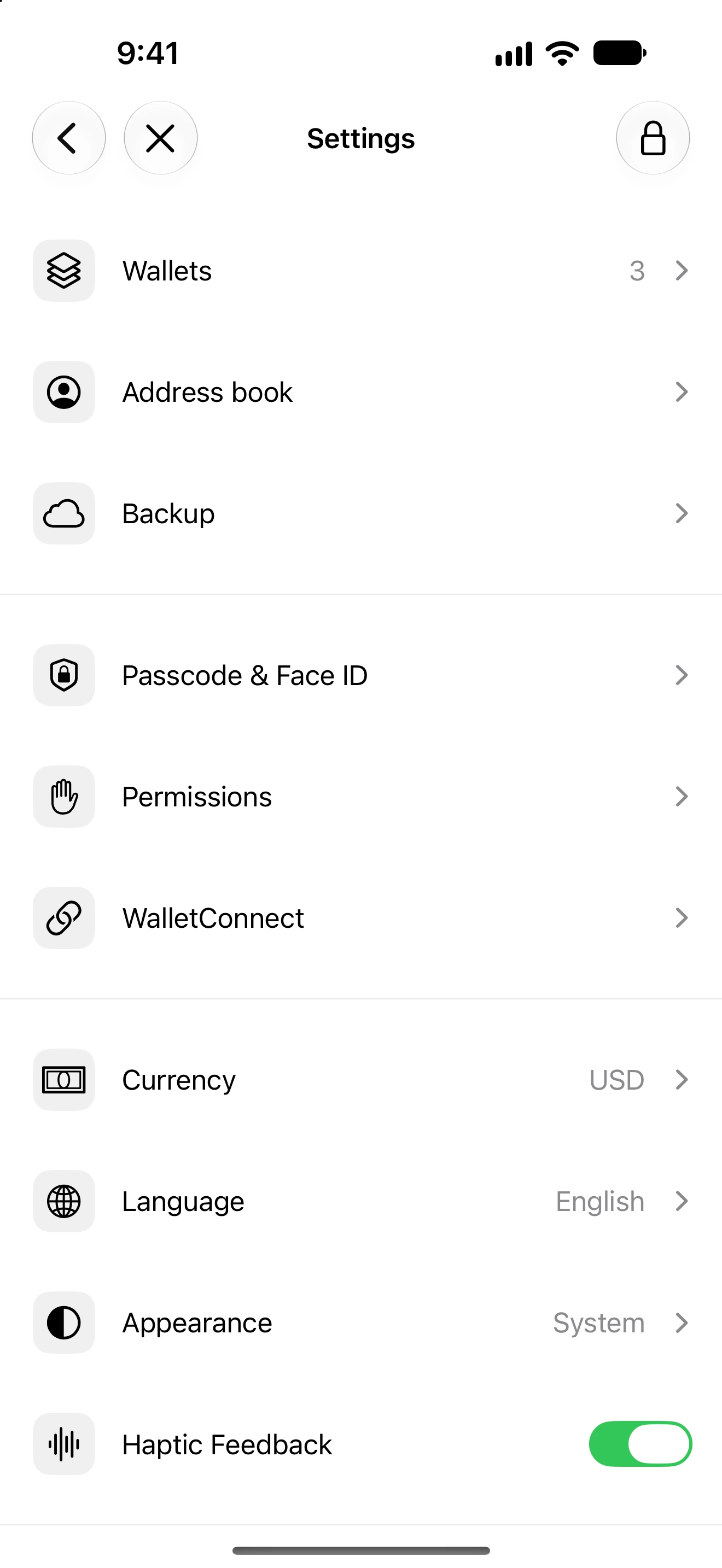
Turn haptic feedback on or off
Choose whether Oath provides tactile feedback for supported controls and outcomes.
Oath 4.0.3
Where to find it
Settings → Haptic Feedback
How to do it
- Open Settings from the Home toolbar.
- Find Haptic Feedback and change its switch.
- Return to a normal selection or confirmation control to use the preference.
- If you do not feel feedback, check the device’s support and system settings as well.
Haptics supplement visible labels, progress and results. A vibration is not proof that a blockchain transaction has confirmed.
Feedback depends on the device and supported interaction. A simulator cannot demonstrate how a physical device feels.
Turning feedback off does not change transaction checks, signing or network fees.
Follow along in Oath
Real app screens with illustrative demo data. No live funds were sent, swapped or revoked for these examples. Never send funds to an example address. Tap an image to inspect it at full size.