Use Monad in Oath
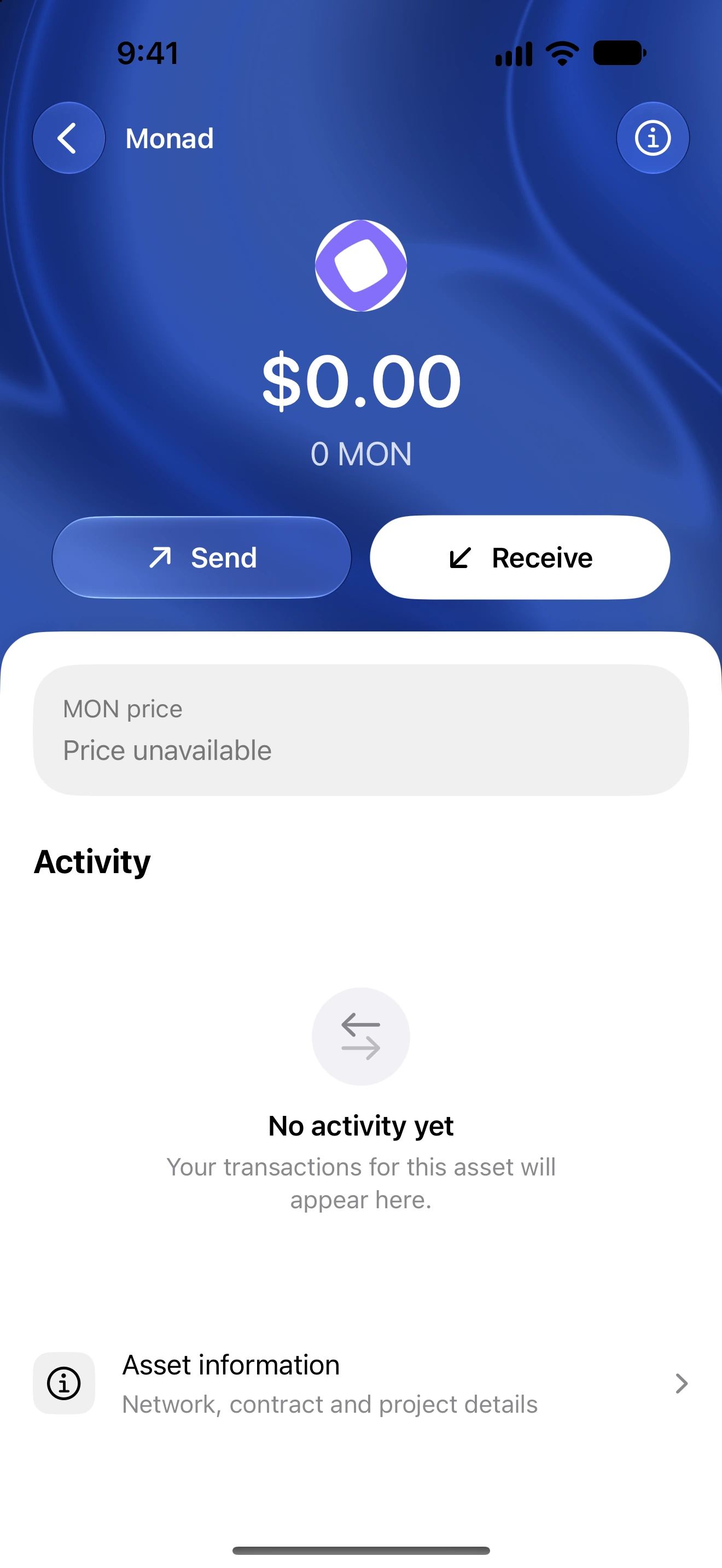
Find the correct Monad account, native fee asset and tokens without confusing other EVM deployments.
Oath 4.0.3
Where to find it
Wallet → Search → Monad
How to do it
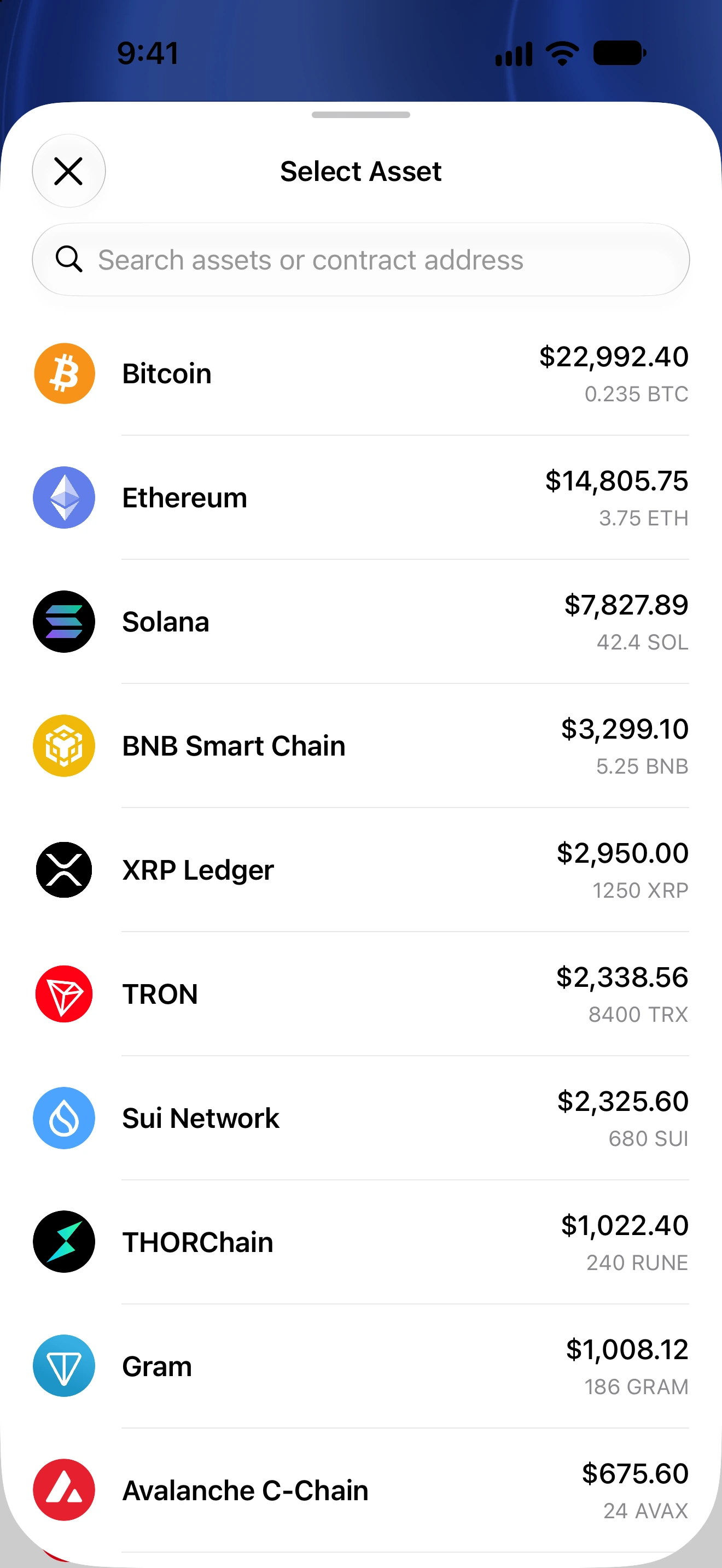
- Select Wallet, open Search and find Monad.
- Open the intended native asset or token and inspect Asset Information.
- Use Receive to copy the public address for this network. Confirm the sending service offers the same network.
- For tokens, search the exact contract address and verify the network before adding.
- Use Send for supported transfers, keeping the native fee asset available.
- Review History and open the transaction’s network-specific explorer after submission.
Monad uses an EVM account address, but its balances and token contracts are separate from other EVM chains.
Provider coverage for token discovery, logos, prices and history can differ. A missing quote is not a zero token balance.
Connecting a dApp requires its own network approval; adding an asset to Home does not authorize a dApp.
Follow along in Oath
Real app screens with illustrative demo data. No live funds were sent, swapped or revoked for these examples. Never send funds to an example address. Tap an image to inspect it at full size.