Understand the balance-change capsule
Read the observed change under the portfolio total without mistaking deposits for investment profit.
Oath 4.0.3
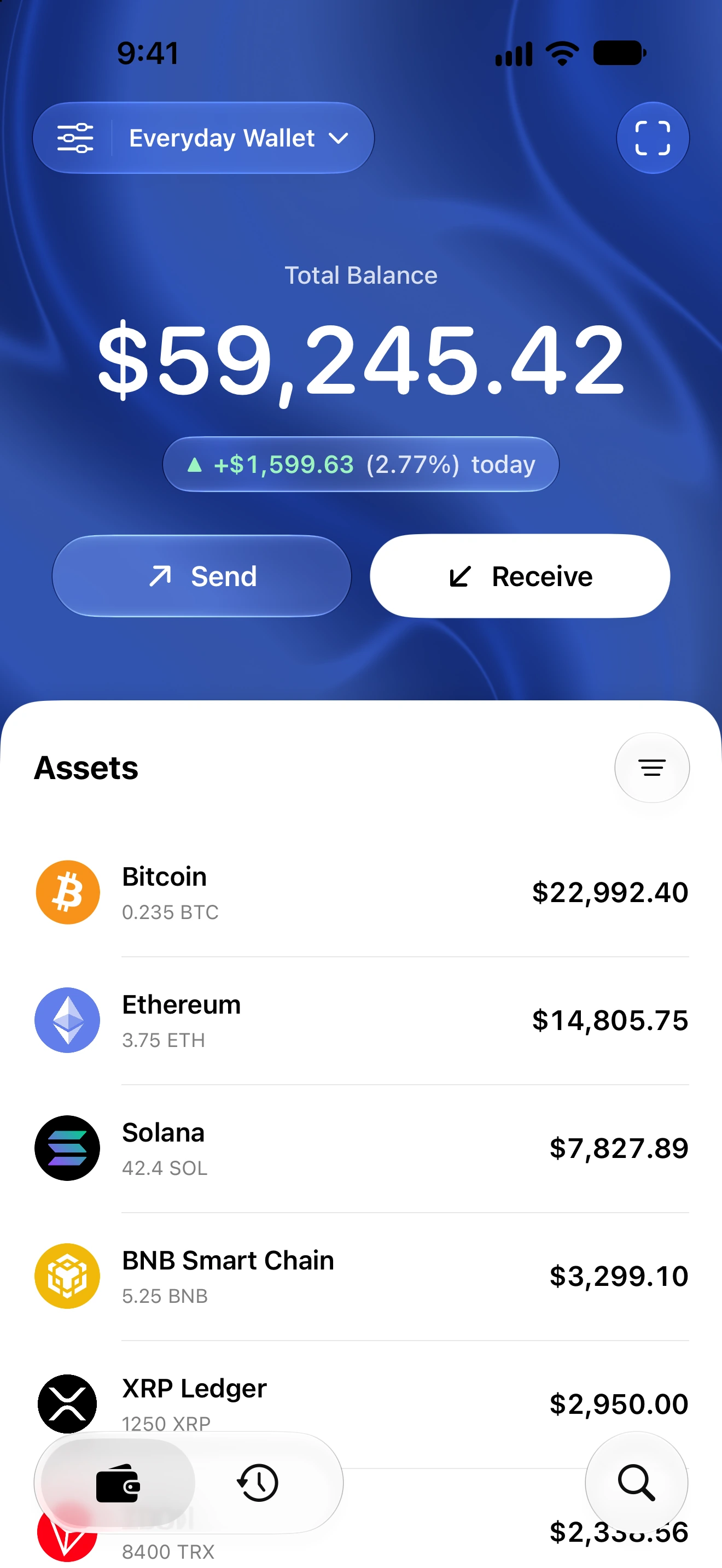
Home → capsule beneath total balance
How to do it
- Open Home for the wallet you want to inspect.
- Read the total and the change capsule underneath it.
- Note the time period shown and whether the change is positive, negative or unchanged.
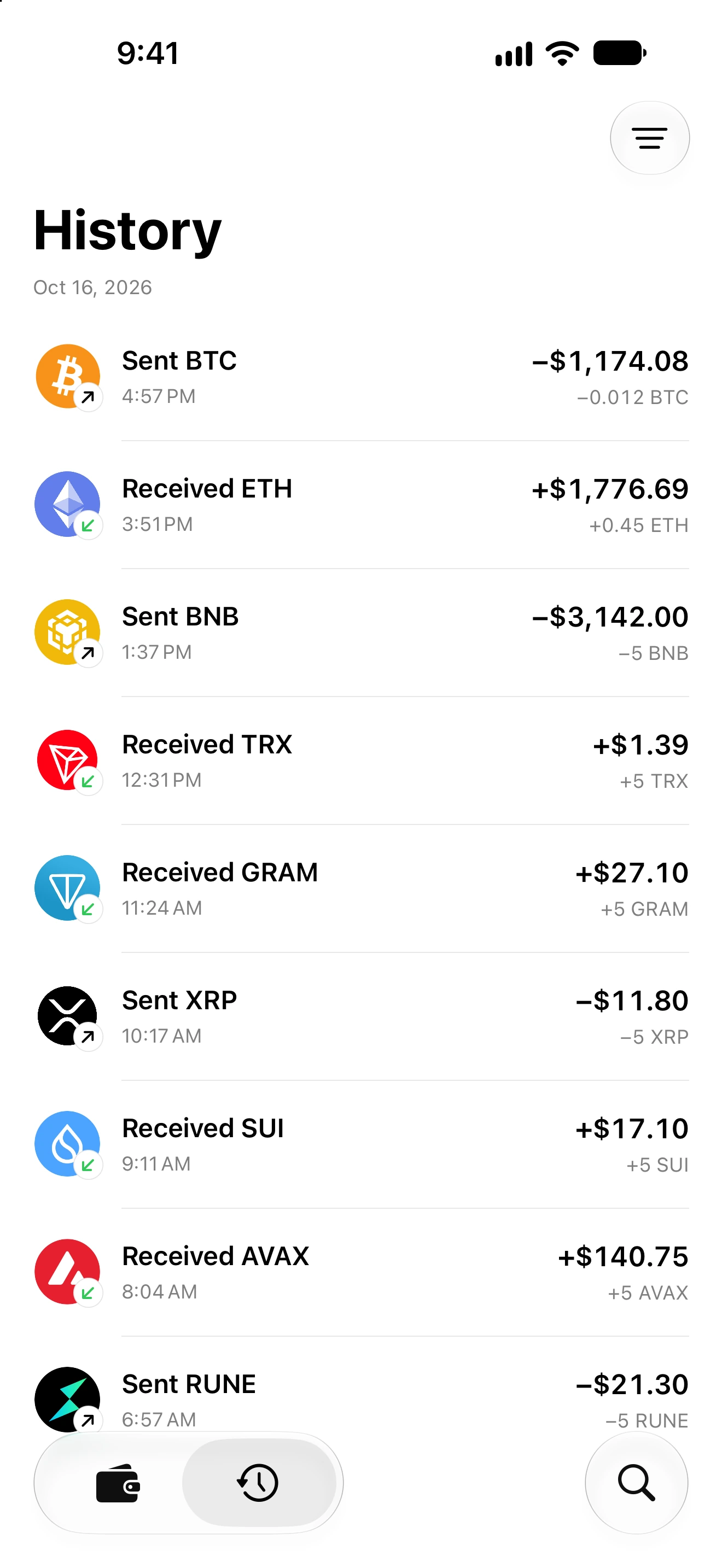
- Review History for deposits, withdrawals and other activity that may have changed the balance.
- Refresh to update available balances and market prices. Compare asset quantities when the currency value changes unexpectedly.
The change is based on available wallet-value snapshots. Deposits, withdrawals, asset discovery and market-price changes can all affect it.
Green and red help indicate direction; the text and sign remain important. A value change is not a tax report or a calculation of realized trading profit.
The capsule is a compact display. The removed balance-history bottom sheet and its range controls are not part of this flow.
Follow along in Oath
Real app screens with illustrative demo data. No live funds were sent, swapped or revoked for these examples. Never send funds to an example address. Tap an image to inspect it at full size.