Understand your backup password
The password for an iCloud backup is separate from your app passcode and BIP-39 passphrase.
Guide checked for Oath 5.1.2 (112).
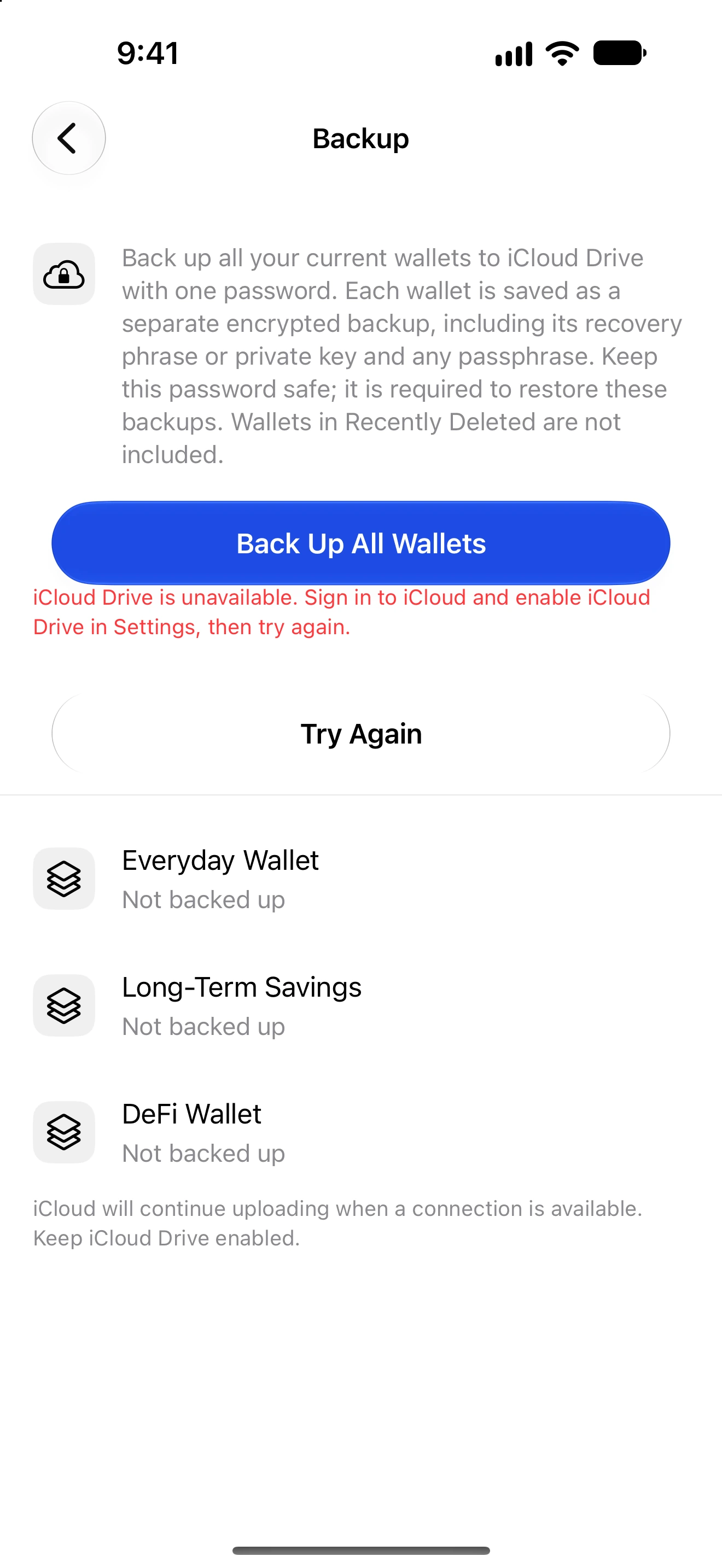
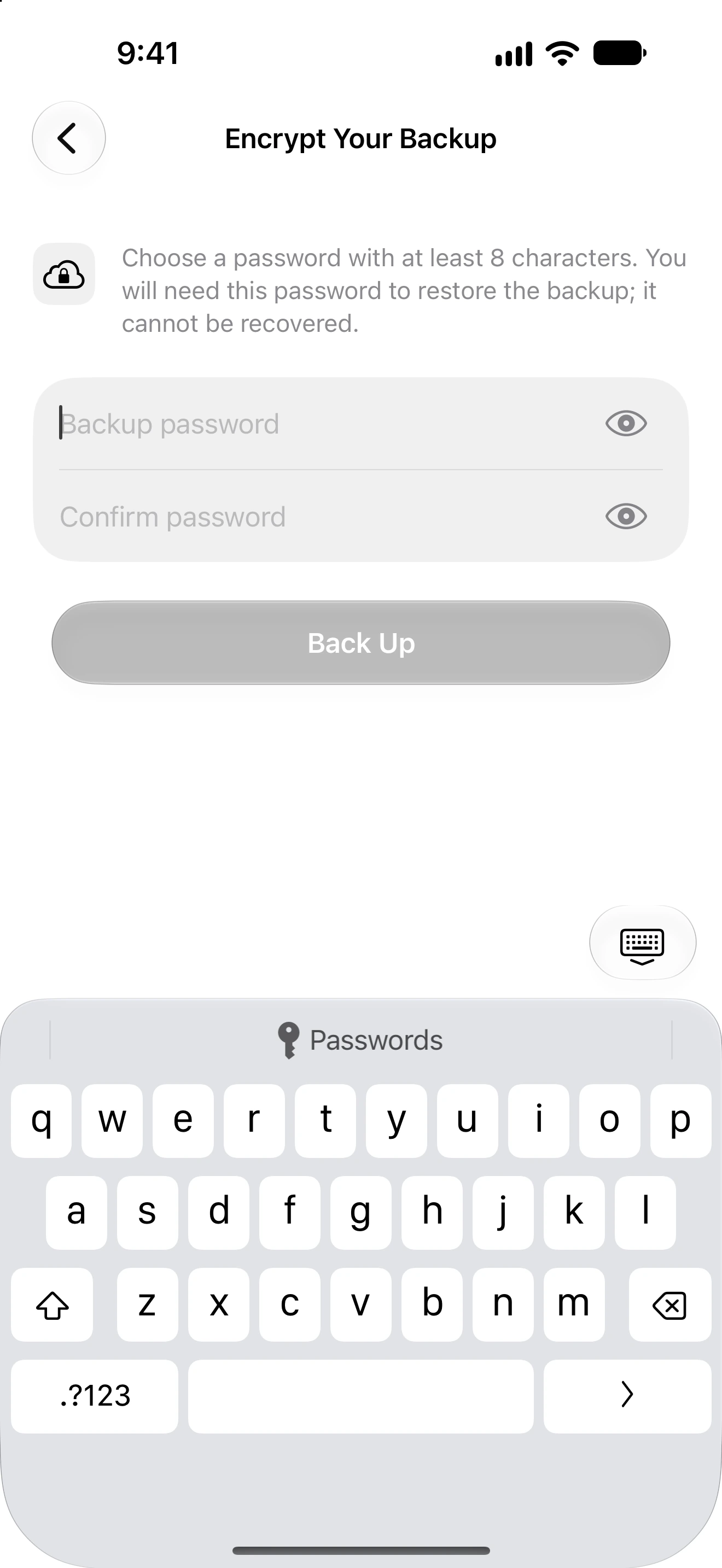
Back Up to iCloud → Encrypt Your Backup
How to do it
- Choose a password of at least eight characters that you can recover independently.
- Enter it twice and use the eye controls to review the fields privately.
- Use that password when restoring the corresponding backup file.
- If you create another backup with a different password, retain the correct password for each file you keep.
Choose a backup password you can recover without access to this phone. It is separate from the six-digit app passcode.
Oath cannot decrypt an existing file with a newly chosen password. Keep the password that was used for each backup file you retain.
Treat the backup as usable only when the relevant operation has completed and you retain the correct recovery material or file password. Loading, preparing and unavailable states are not successful backups.
Follow along in Oath
Real app screens with illustrative demo data from historical captures. Current release: Oath 5.1.2 (112); appearance and available options may differ from the images. No live funds were sent, swapped or revoked for these examples. Never send funds to an example address. Tap an image to inspect it at full size.