Search for a coin or token
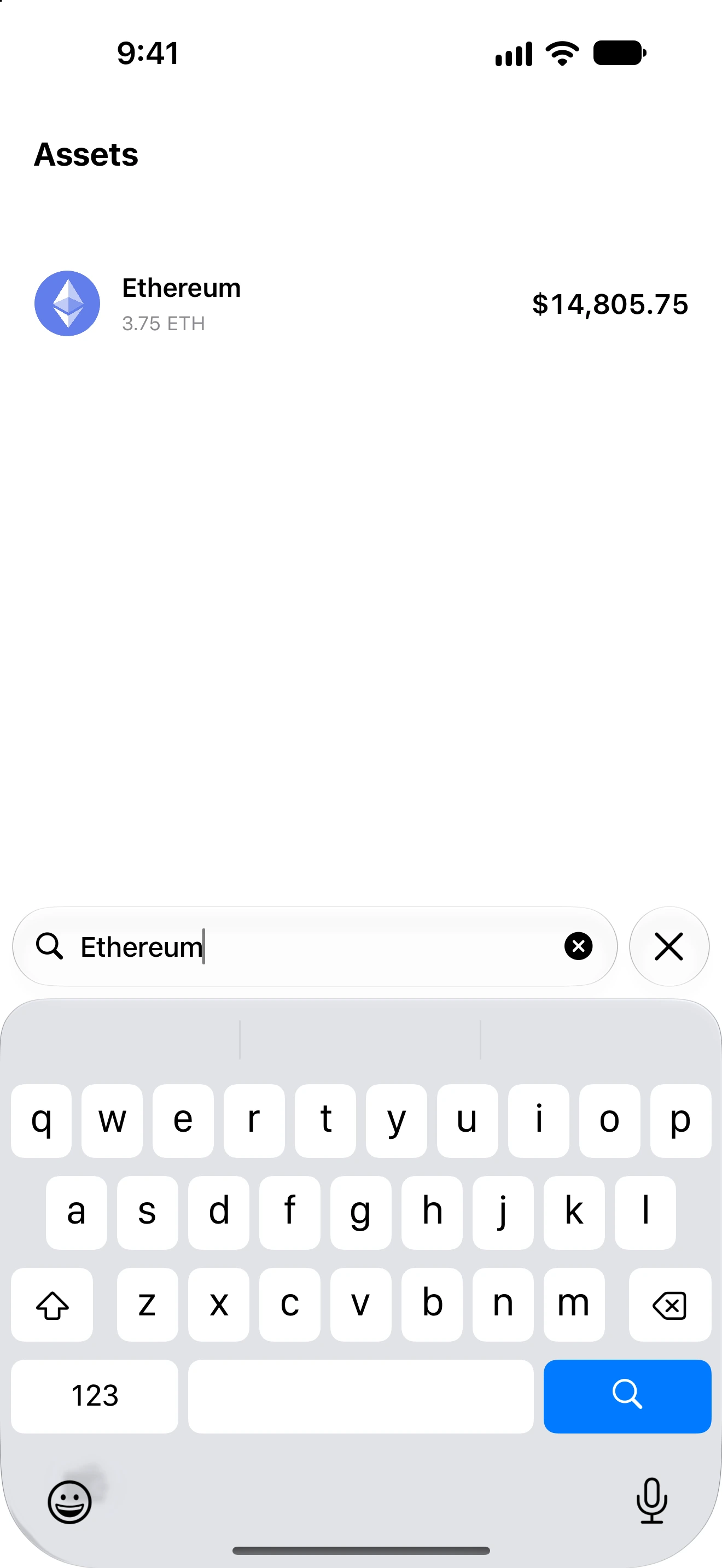
Find an asset by its name, symbol, network or saved token address.
Guide checked for Oath 5.1.2 (112).
Bottom navigation → Wallet → Search
How to do it
- Tap the Wallet icon first so Search is in asset mode.
- Tap the separate magnifying-glass Search icon. Enter a name, symbol or network in the native search field.
- Tap a matching asset to open its balance, receiving address and recent activity.
- Clear the query to review other matches, or tap Wallet to return to the unfiltered Home list.
The ordinary Wallet and History screens do not have a search field in their app bars. Search has its own view, reached with the magnifying-glass icon.
If you see Search transactions, you entered Search from History. Select Wallet, then Search, to search assets instead.
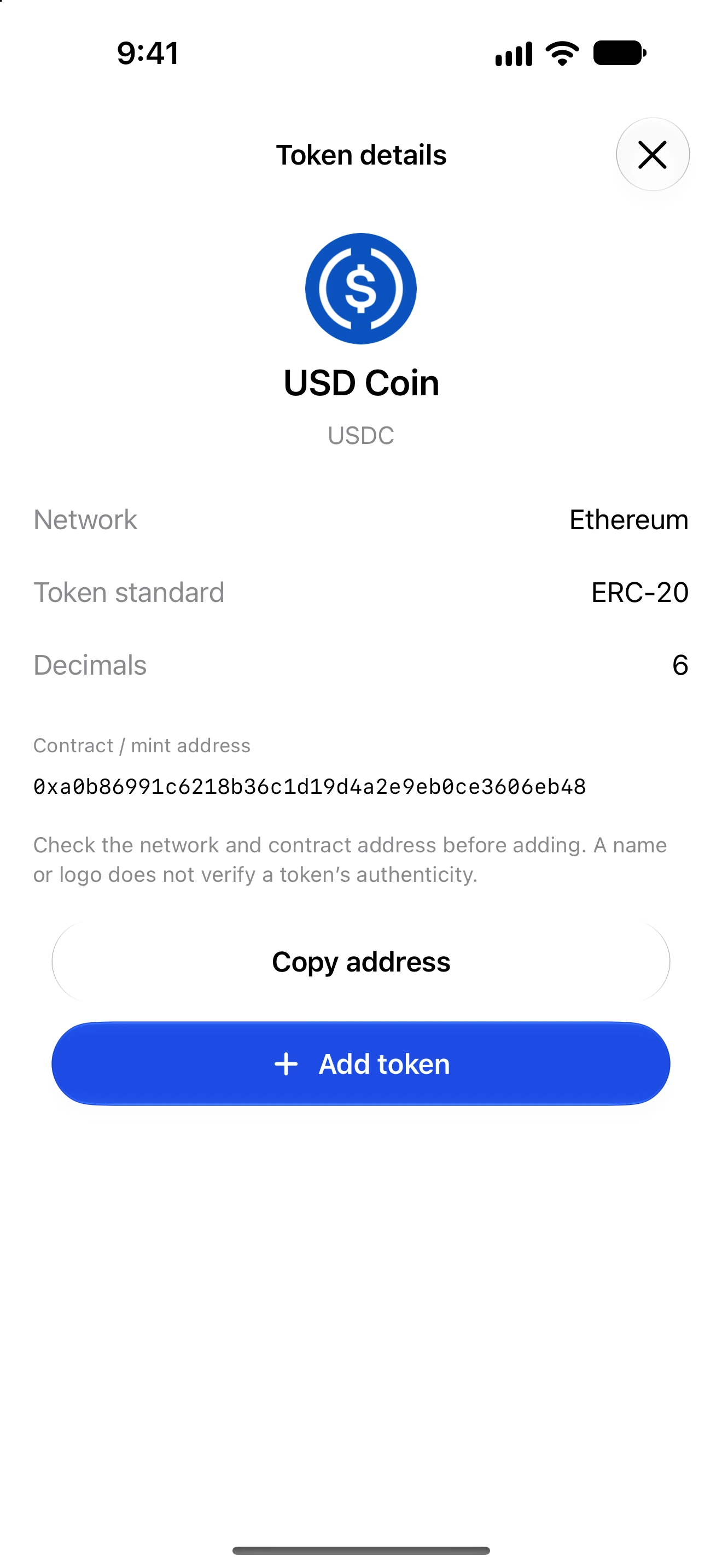
To discover a supported token that is not already listed, paste its exact contract or mint address. Searching a name alone does not prove which contract issued a token.
Follow along in Oath
Real app screens with illustrative demo data from historical captures. Current release: Oath 5.1.2 (112); appearance and available options may differ from the images. No live funds were sent, swapped or revoked for these examples. Never send funds to an example address. Tap an image to inspect it at full size.