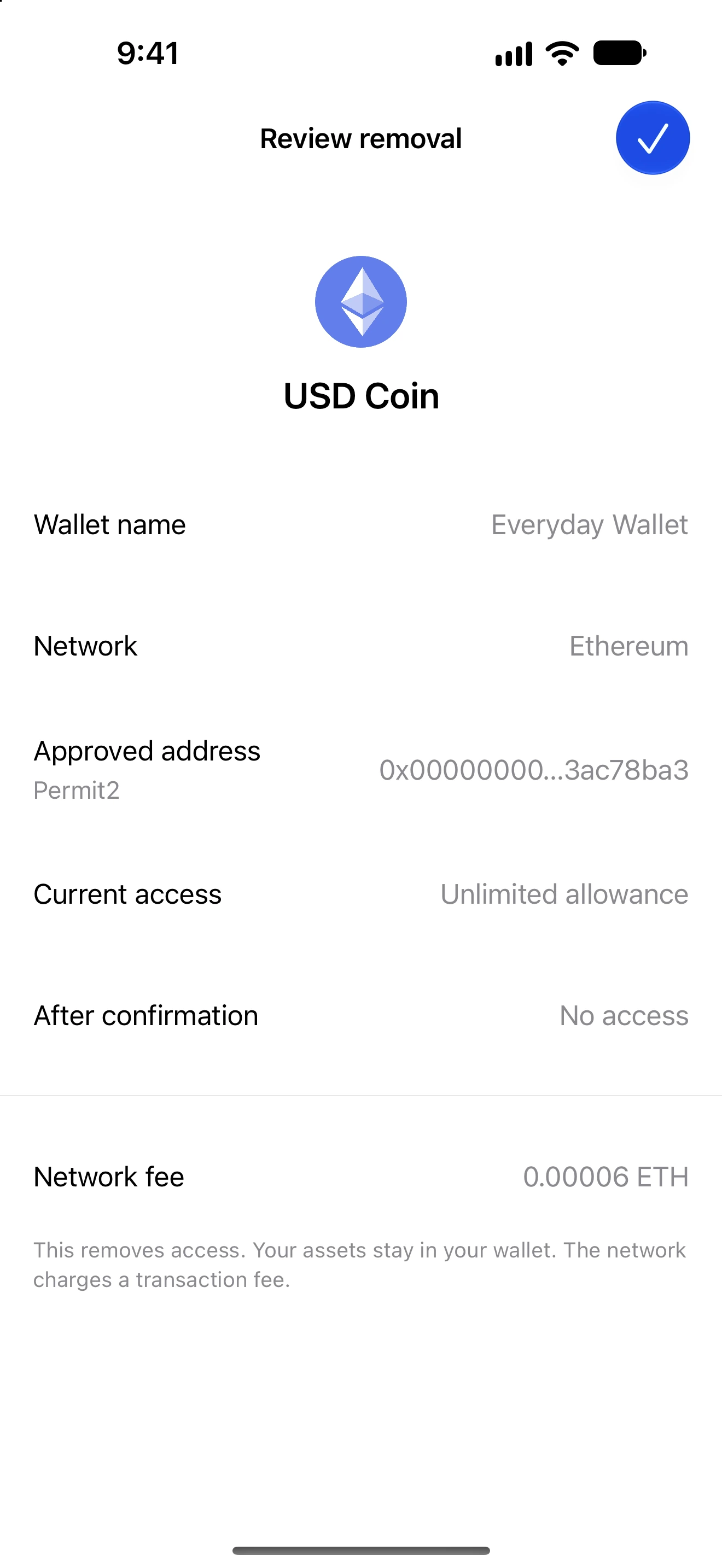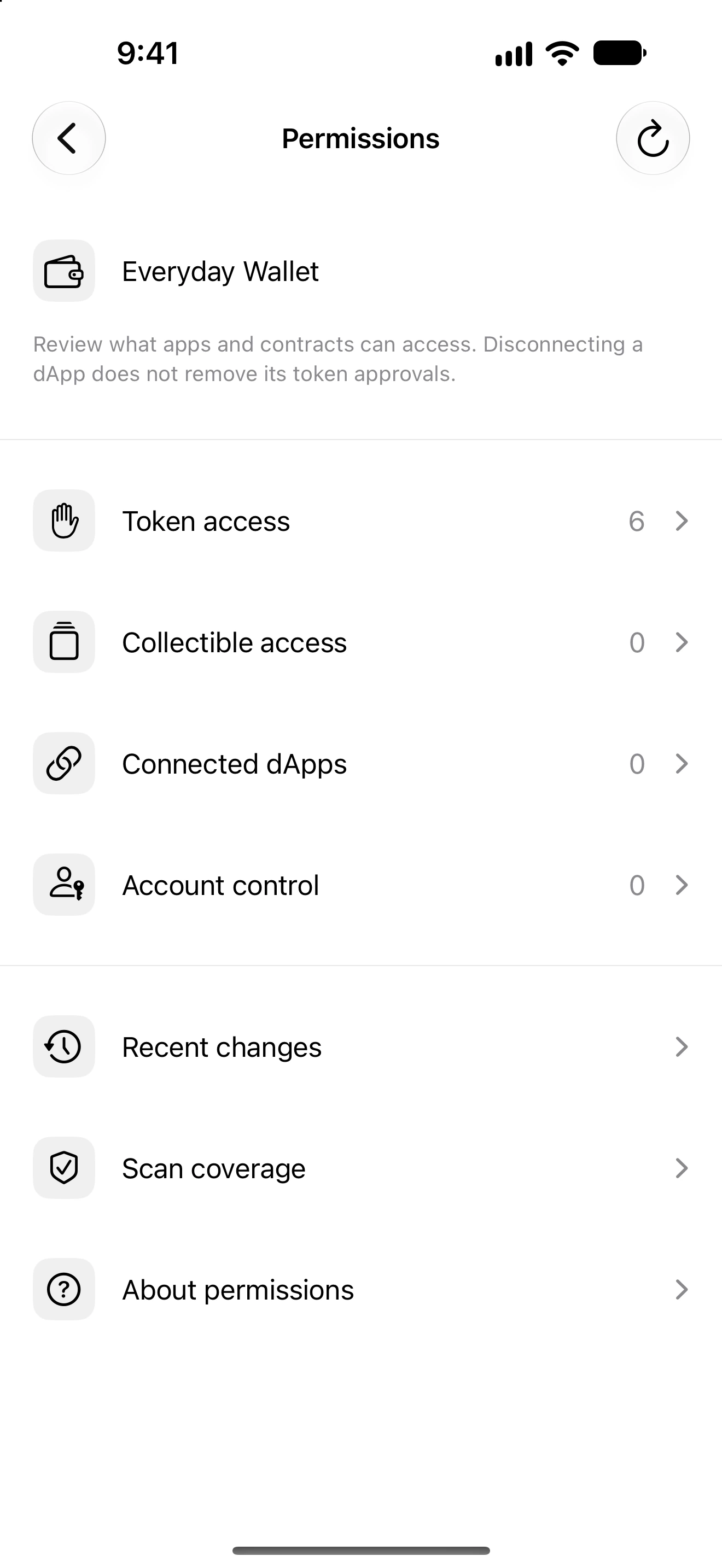
Check revocation progress and failures
Confirm each permission removal rather than assuming a completed queue means every item succeeded.
Oath 4.0.3
Where to find it
Permissions → Recent changes
How to do it
- Open Permissions for the wallet used in the revocation.
- Open the history/progress entry for the removal or batch.
- Read each item’s network, asset, submission status and access result.
- For pending items, wait and refresh or reopen Oath after connectivity returns.
- For failures, read the reason, fix fee or network problems and prepare a new review for that item only.
- Rescan the access list and compare the exact permission after confirmation.
Submission, chain confirmation and verification that access is removed are distinct stages.
A batch can continue after one error and therefore produce successful and failed rows together. Review all selected entries, not just the last notification.
Closing the app may pause work; reopening and unlocking allows supported pending work to resume.
Follow along in Oath
Real app screens with illustrative demo data. No live funds were sent, swapped or revoked for these examples. Never send funds to an example address. Tap an image to inspect it at full size.