Find your way around Home
Use the Wallet, History and Search icons, and find the controls for your active wallet.
Guide checked for Oath 5.1.2 (112).
Bottom navigation → Wallet
How to do it
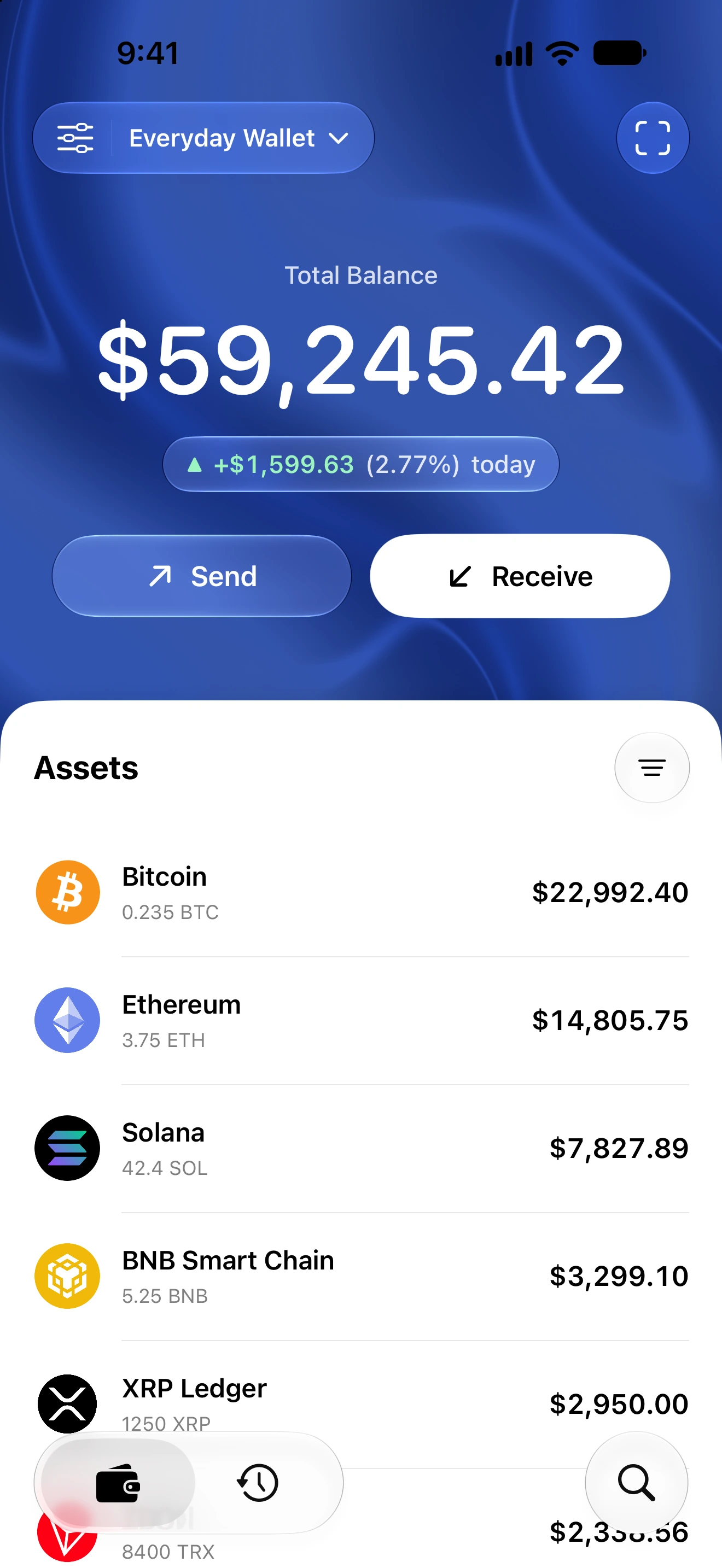
- Open the Wallet tab to see the active wallet’s total and Assets list.
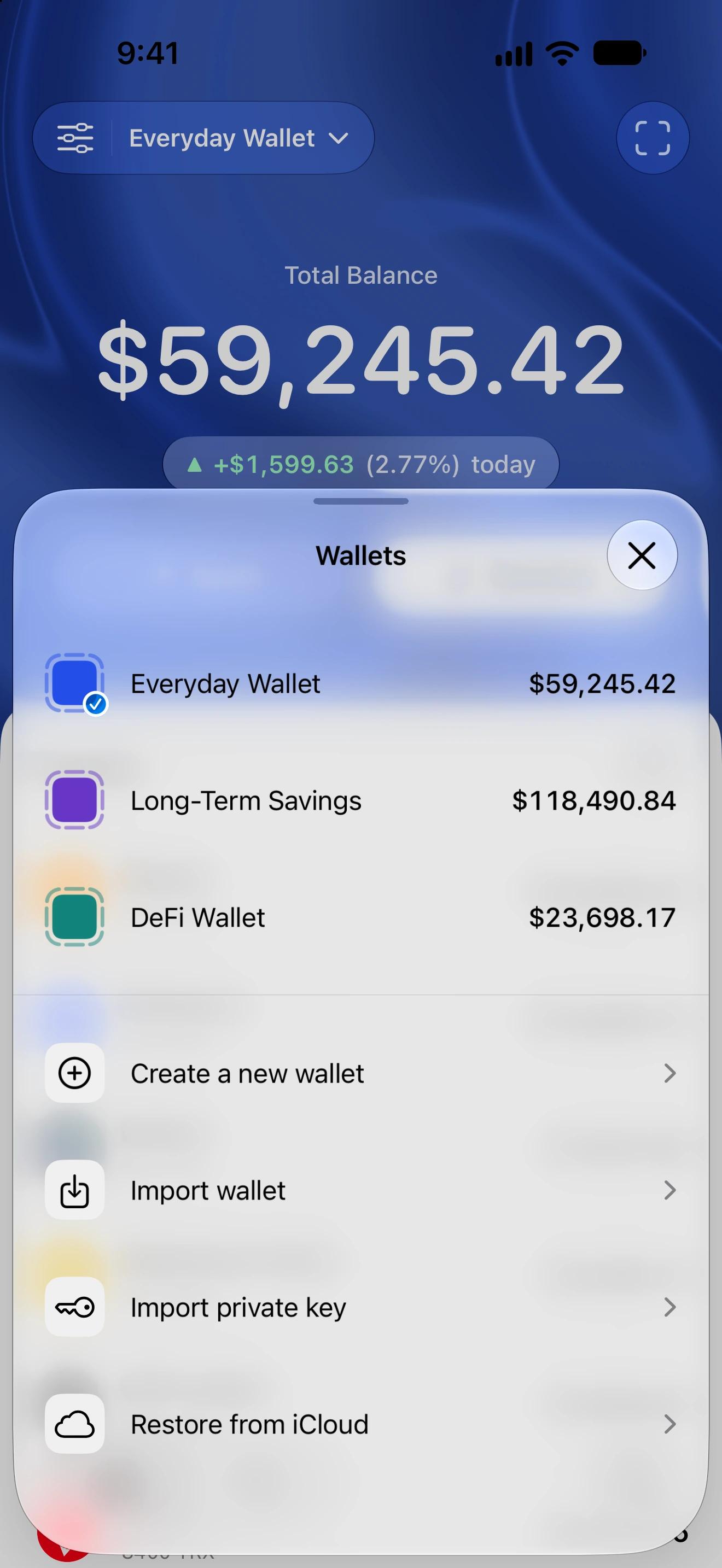
- Use the wallet-name capsule in the top toolbar to switch wallets. The adjacent sliders action opens Settings; the scanner opens the shared QR scanner.
- Read the balance-change capsule under the total as an observed change in this wallet’s value. It is not a profit report or a button for a balance-history chart.
- Tap Send or Receive for a transfer flow. Tap an asset for its price, actions and activity.
- Select Wallet and then the separate Search icon to search assets, including an exact contract or mint address.
- Open History for transactions across the active wallet. Pull down from the top to refresh; cached information can remain visible while newer data arrives.
Wallet, History and Search are different views of the same active wallet. Selecting the Wallet navigation icon returns to Home. The name capsule in the top toolbar opens the wallet switcher.
Search follows the last section you selected: Wallet searches assets, while History searches transactions. Select the section you want before opening Search.
For the main Settings screen, return to the top of Home until the sliders icon is visible. Currency, Language and Appearance are directly in Settings; there is no separate Preferences screen.
A long wallet name stays on one line and ends with an ellipsis inside the capsule. VoiceOver reads the full name. The wallet’s saved name is not shortened or changed.
Follow along in Oath
Real app screens with illustrative demo data from historical captures. Current release: Oath 5.1.2 (112); appearance and available options may differ from the images. No live funds were sent, swapped or revoked for these examples. Never send funds to an example address. Tap an image to inspect it at full size.